# Getting started
Web page: https://benjamindehli.github.io/microsampler-editor-librarian/getting-started
Download the app for your platform (or use the classic launchers), then the first-run steps to get the editor talking to your microSAMPLER.
## Download the apps
Signed, notarized apps for macOS, and the Library app for Linux. You don't need Terminal or Python.
### macOS (13 Ventura or newer)
[Download for Apple Silicon →](https://github.com/benjamindehli/microsampler-editor-librarian/releases/latest/download/microSAMPLER-macos-arm64.dmg) [Download for Intel →](https://github.com/benjamindehli/microsampler-editor-librarian/releases/latest/download/microSAMPLER-macos-x86_64.dmg)
Open the disk image and drag both apps to the Applications shortcut:
- **microSAMPLER Editor Librarian** is the full editor, as a menu-bar app. On first launch macOS asks you to approve its background service once (System Settings → Login Items). After that the editor is one click away. The service claims the microSAMPLER only while the editor is open, and releases it a few minutes after you close the tab, so the device stays available to your DAW the rest of the time.
- **microSAMPLER Library** lets you browse, play and export the samples and patterns in bank backups (including original Korg `.msmpl_bank` files), no hardware needed.
### Linux
[Download the Library AppImage →](https://github.com/benjamindehli/microsampler-editor-librarian/releases/latest/download/microSAMPLER_Library-x86_64.AppImage)
Make it executable (`chmod +x`, or "Allow launching" in your file manager) and run it. Also available as a plain [tar.gz](https://github.com/benjamindehli/microsampler-editor-librarian/releases/latest/download/microSAMPLER_Library-linux-x86_64.tar.gz). For the full editor on Linux, use the [classic launcher](https://benjamindehli.github.io/microsampler-editor-librarian/getting-started#linux) below.
> **WINDOWS**
>
> No app yet. Use the [classic launcher](https://benjamindehli.github.io/microsampler-editor-librarian/getting-started#windows) below. It's experimental, and device mode needs a one-time driver swap.
## Requirements
### Hardware
- A **Korg microSAMPLER**.
- A **USB cable** (USB-B, the standard "printer" type) to connect it to your computer.
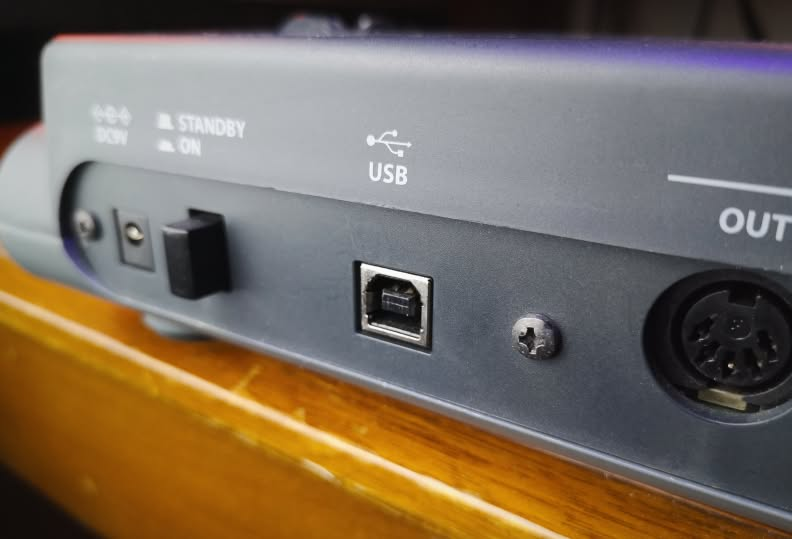
The microSAMPLER's rear panel. The USB port is what connects to your computer.
### Software
| Component | Notes |
| --- | --- |
| Operating system | Apps: macOS 13+ / Linux x86-64. Classic launchers: macOS (tested), Linux (should work), Windows (untested) |
| Python 3.8+ | Classic launchers only. The apps bundle their own runtime. macOS: via the Xcode Command Line Tools (`xcode-select --install`) or [python.org](https://python.org) |
| `pyusb` (BSD) + `libusb` (LGPL) | Bundled with the app, so there's no `pip` or Homebrew step (a system copy is used instead if you have one) |
| A modern browser | Chrome / Chromium recommended (Web MIDI needs Chrome, Edge or Firefox) |
The interface is plain web files served by a small local helper (the "bridge"), so there's nothing to build.
## The classic way: ZIP + launchers
Everything also runs from a small ZIP with per-platform launchers, needing only Python 3. This is the way on Windows, and for the full editor on Linux.
[Download the latest release →](https://github.com/benjamindehli/microsampler-editor-librarian/releases)
Unzip it, then open a terminal in the unzipped folder. Prefer git? Clone instead:
```
git clone https://github.com/benjamindehli/microsampler-editor-librarian.git
cd microsampler-editor-librarian
```
In a git clone the scripts are under `src/`, e.g. `src/native-tools/bridge.py`.
## Launcher: macOS
Nothing to install. pyusb and libusb are bundled. Just use the launcher:
1. Connect the microSAMPLER to your Mac with the USB cable and power it on.
2. Open the `macOS/` folder and double-click `microSAMPLER Editor Librarian.command`.
3. Enter your password when asked. Administrator rights are required to claim the USB connection from macOS.
4. The editor opens in your browser automatically.
> **FIRST RUN: "UNIDENTIFIED DEVELOPER"**
>
> The launcher is unsigned (it's a free, open-source project), so the first time you open it macOS blocks it with *"cannot be opened because it is from an unidentified developer"*. Approve it once:
>
> - **Right-click** (or Control-click) the launcher → **Open**, then **Open** again in the dialog.
> - On newer macOS, if there's no *Open* option: double-click it once (it gets blocked), then go to **System Settings → Privacy & Security**, find the message about the blocked launcher, and click **Open Anyway**.
>
> Comfortable with Terminal? Clear the download quarantine on the whole unzipped folder instead, then double-click as normal. You only need to do this once:
>
> ```
> xattr -dr com.apple.quarantine microsampler-editor-librarian
> ```
## Launcher: Linux
pyusb and libusb are bundled (x86-64 and ARM64). Just use the launcher:
1. Connect the microSAMPLER and power it on.
2. Open the `Linux/` folder and double-click `microSAMPLER Editor Librarian.sh`. Some file managers open `.sh` files in an editor. Mark it executable / "Allow launching" first, or run `./'Linux/microSAMPLER Editor Librarian.sh'` from a terminal.
3. Enter your password when asked (root is needed to claim the USB device).
4. The editor opens in your browser automatically.
## Launcher: Windows (experimental)
> **UNTESTED, EXTRA SETUP REQUIRED**
>
> Windows hasn't been verified, and libusb can't open the device until its USB driver is switched to **WinUSB** using [Zadig](https://zadig.akeo.ie/).
1. Install [Python 3](https://python.org/) (tick "Add to PATH"). pyusb and a 64-bit `libusb` DLL are bundled, so there's nothing else to install.
2. With the microSAMPLER connected, run **Zadig** and replace its driver with **WinUSB** (or libusbK).
3. Open the `Windows/` folder and double-click `microSAMPLER Editor Librarian.bat`.
## Any platform: manual & mock
Run the bridge directly, then open [http://localhost:8765](http://localhost:8765):
```
sudo python3 native-tools/bridge.py
```
> **WHY SUDO?**
>
> The operating system's MIDI driver owns the device's USB interface. The bridge needs elevated rights to take it over while it runs. It hands control back when it exits.
To explore the interface with **no device connected**, run the bridge in mock mode (no password needed):
```
python3 native-tools/bridge.py --mock
```
## First run
1. With the device connected and the bridge running, open the editor in your browser.
2. Check the **CONNECTED** light (top-right) is green.
3. The app reads the current bank automatically and downloads every sample (a progress bar shows the count). Its 36 sample slots and settings appear. Press **RECEIVE** (top-right) any time to re-read it.
4. Click any pad to start editing.
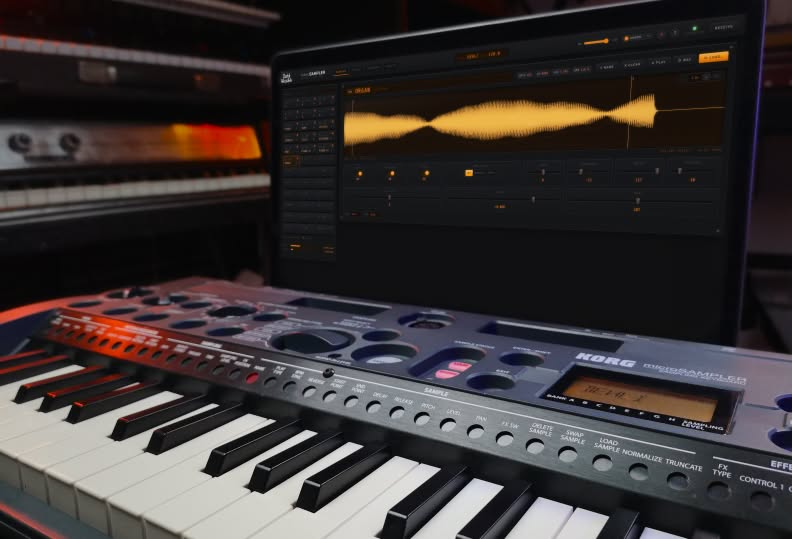
The bridge runs locally and the editor talks to the device over USB.
## Device setup
Two things to know before you start:
- **One USB owner at a time.** The microSAMPLER moves samples and patterns over USB using non-standard transfers, so it can't share the connection with a DAW or other MIDI software. Close those (and Korg's original editor) while the bridge is running.
- **MIDI CLK = AUTO** for pattern playback. The device's sequencer is a clock slave, so the editor streams MIDI clock to drive it. On the device, set `GLOBAL → MIDI CLK = AUTO` (or EXT MIDI). Otherwise the transport buttons do nothing.
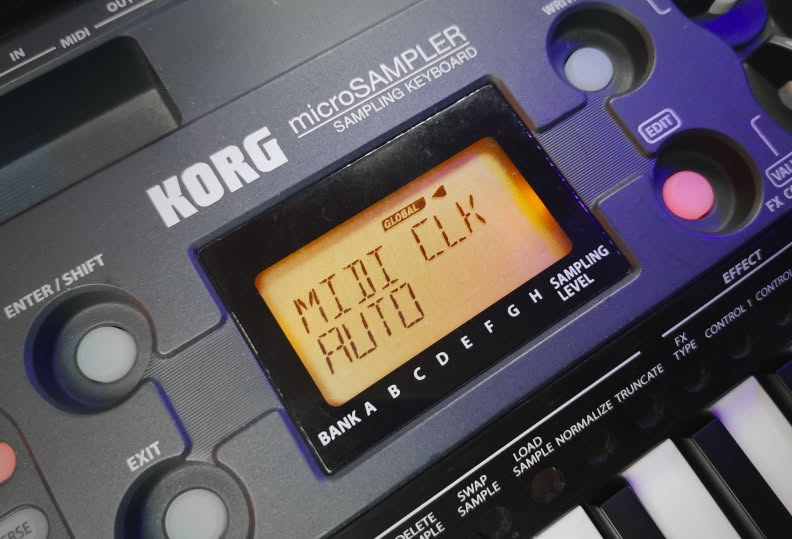
Set MIDI CLK to AUTO so the sequencer follows the editor's transport.
New to the hardware? The [Concepts](https://benjamindehli.github.io/microsampler-editor-librarian/concepts) page explains banks, the two play modes, BPM-sync and the sequencer. Stuck? See [Troubleshooting](https://benjamindehli.github.io/microsampler-editor-librarian/troubleshooting).