# The guide
Web page: https://benjamindehli.github.io/microsampler-editor-librarian/guide
A tour of every view. New to the hardware? Read [how the microSAMPLER works](https://benjamindehli.github.io/microsampler-editor-librarian/concepts) first. It explains what each parameter does on the hardware.
## Samples
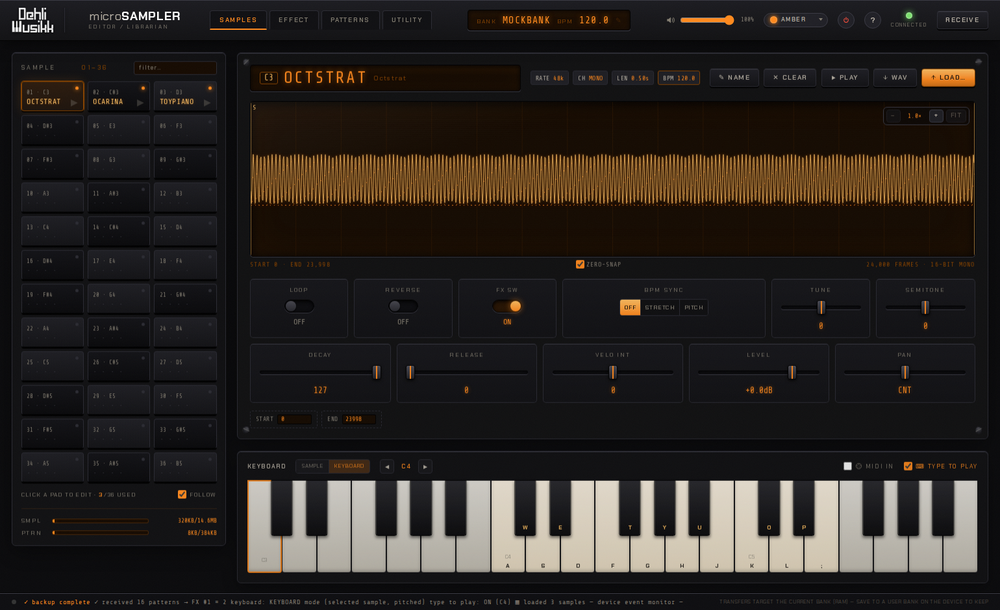
The SAMPLES view: pad grid, waveform, the full set of sample parameters, and an on-screen keyboard.
- **36-slot pad grid**. Click a pad to edit it, and filter by name with the search box.
- **Waveform**. Scroll to zoom, drag to pan. Set the start/end points by dragging the `S`/`E` markers or by typing exact frame values. With **ZERO-SNAP** on, a dragged marker snaps to the nearest zero crossing so the trim doesn't click.
- **Audition**. The **▶ PLAY** button plays the slot on the device (with a moving playhead over the waveform).
- **Original BPM**. Click the **BPM** chip to edit the sample's original tempo (used for BPM-sync stretching) in a dialog. Applying re-uploads the sample to the device, keeping its audio and all other settings.
- **On-screen keyboard**. A piano below the editor mirrors all 36 pads. Click a key to play it on the device. The **SAMPLE / KEYBOARD** toggle switches how the keys play: **SAMPLE** triggers a different sample per key (keys with no sample are dimmed), and **KEYBOARD** plays the currently selected sample across the keyboard, pitched. Tick **TYPE TO PLAY** to play from your computer keyboard too (the piano shows which key is which), with `Z`/`X` or the `◀ ▶` buttons to shift octave.
- **MIDI IN**. Tick it to play the device from a connected MIDI controller, with velocity, pitch bend and sustain pedal. Notes follow the SAMPLE / KEYBOARD toggle. MIDI IN uses your browser's Web MIDI, which Chrome, Edge and Firefox support.
- **MIDI channel routing**. With **SMP CH** / **KBD CH** next to MIDI IN, notes on the SMP channel always trigger pads and notes on the KBD channel always play the selected sample pitched, so a split controller can do both at once. Other channels, and the default (no channel), follow the SAMPLE / KEYBOARD toggle.
- **MIDI Learn**. Click **LEARN** (next to MIDI IN) or right-click a sample control. The control shows a **LEARN** badge. Move a knob or slider on your controller and the badge shows its CC number (**PB** for the pitch-bend wheel). A binding controls the pad that was selected when you learned it, even while you edit others, and each CC drives one control. While learning, right-click a control to clear its binding, and `Esc` stops learning. Binding CC#64 or the pitch-bend wheel replaces its sustain or bend function. Bindings are saved in the browser.
- **Loop hold**. Tick **LOOP HOLD** to latch notes: a pad ▶, piano key, typed key or MIDI note keeps sounding until you trigger it again. Unticking it, switching SAMPLE / KEYBOARD, **Panic** or a bank read releases everything held.
- **Transfer**. Download a slot as a WAV, or upload WAVs (auto-resampled to the device's 48/24/12/6 kHz). Drop several WAVs onto the pads to fill consecutive slots.
- **Auto-slice**. From the upload dialog's **SLICE…** button, chop one long sample across consecutive pads, either into equal pieces or at detected transients (ideal for drum breaks and loops).
- **Audio tools on upload**. Normalize, adjust gain, trim silence, fade in/out, and convert mono↔stereo, all processed in your browser before transfer.
- **Live editing**. Loop, reverse, BPM-sync, FX on/off, decay, release, level, pan, semitone, tune and velocity intensity, all written to the device as you change them.
- **Slot management**. Rename, clear (✕), and copy/swap by dragging one pad onto another.
- **Memory meters**. All samples are downloaded when you connect (a progress bar shows the count), so the readout is always exact and every waveform is instant.
- **FOLLOW** (toggle, on by default). The app's selection tracks the last sample triggered on the device, whether you play it by hand or a pattern triggers it, so editing keeps up with the hardware. Since samples are preloaded, the switch is instant. Turn it off if you'd rather the selection stay put while a pattern plays.
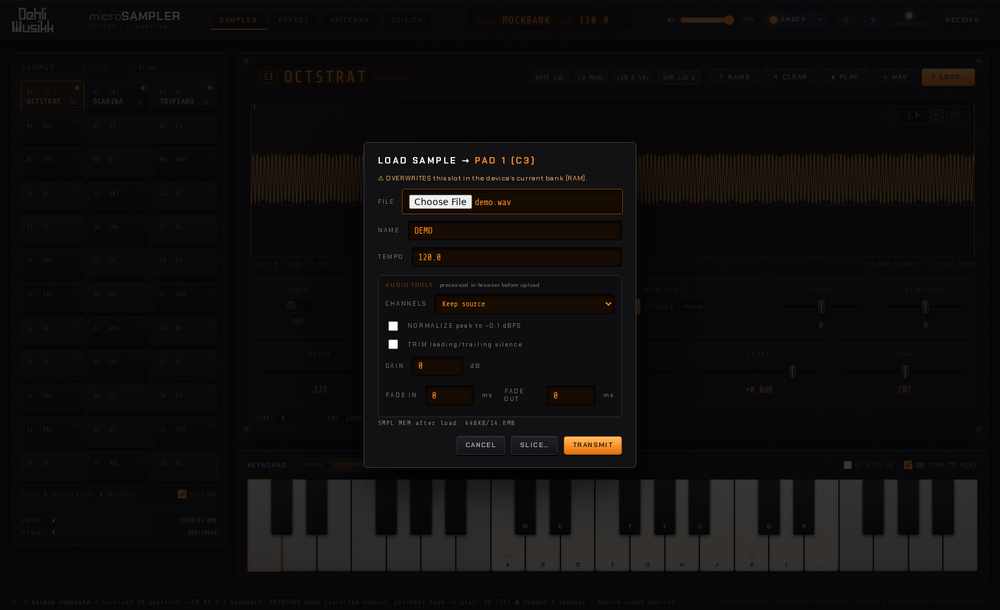
Uploading a WAV: the audio tools panel processes the file before it's sent.
## Effect
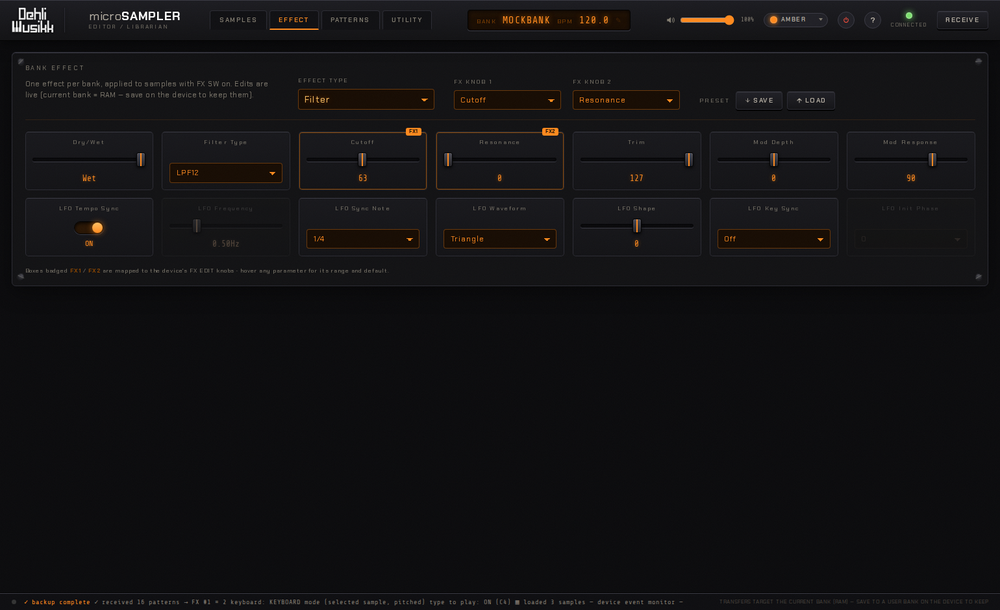
The EFFECT view: every effect type with its full parameter set. The two physical-knob targets are badged FX1 / FX2.
- **All 22 effect types**, each with its complete set of parameters. One effect runs per bank (see [how effects work](https://benjamindehli.github.io/microsampler-editor-librarian/concepts#effects)).
- **Hover any parameter** to see its range and default value.
- **Two assignable knobs**. The parameters mapped to the hardware's FX EDIT 1/2 knobs are badged **FX1** / **FX2** in the grid, and turning those knobs on the device is tracked live in the editor.
- Parameters gray out and swap exactly like the hardware does, depending on the current settings.
- **Presets**. Save the whole effect (type, knobs, parameters) to a file and load it back.
## Patterns & editor
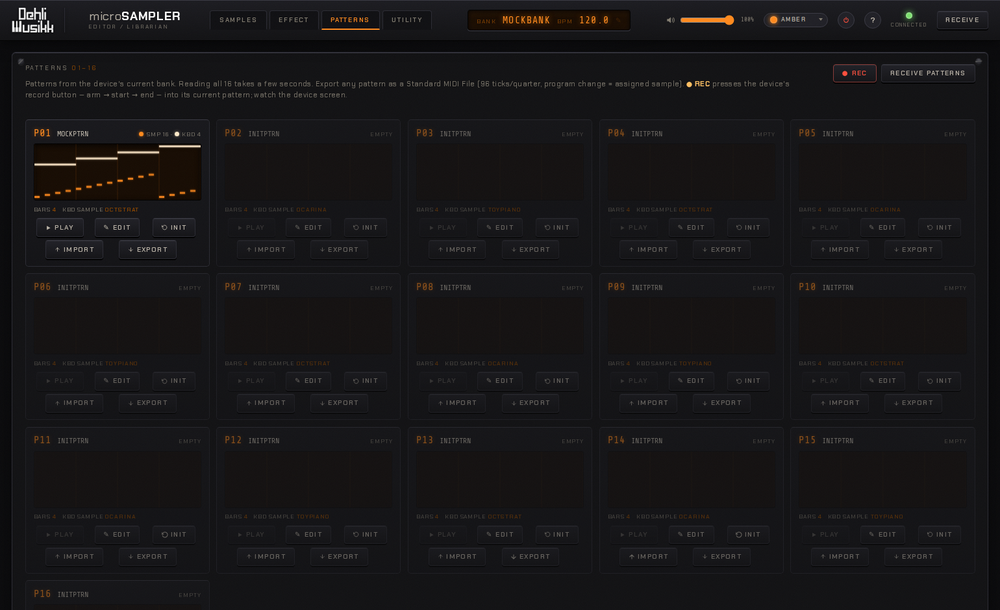
The PATTERNS view: all 16 patterns with mini piano-roll previews.
- **RECEIVE PATTERNS** reads all 16 patterns from the current bank.
- **Play** a pattern on the device (the ▶ on each recorded card), with a playhead sweeping its mini piano-roll.
- **✎ EDIT** opens an in-app **piano-roll editor** over both the sample-mode (pad) and keyboard-mode (pitched) tracks. Switch between the **Draw**, **Erase** and **Select** tools (the cursor changes to match): draw, move and resize notes, drag to erase a run of them, or marquee-select several at once. It supports **multi-select** (Shift/⌘-click), **undo/redo** and **copy/paste** whose clipboard persists across patterns, so you can copy from one pattern and paste into another. Per-note velocity shows as note brightness, the arrow keys nudge or resize, and `Space` plays the pattern on the device with a playhead sweeping the roll. Set the bar count, grid snap and the keyboard track's sample, then **Save to Device** (clicking outside the dialog saves and closes). Works on an empty slot too, so you can build a pattern from scratch.
- **● REC** presses the device's record button over MIDI (arm → start → end) to record into its current pattern.
- **Import / export MIDI**. Export any pattern as a Standard MIDI File, or import one.
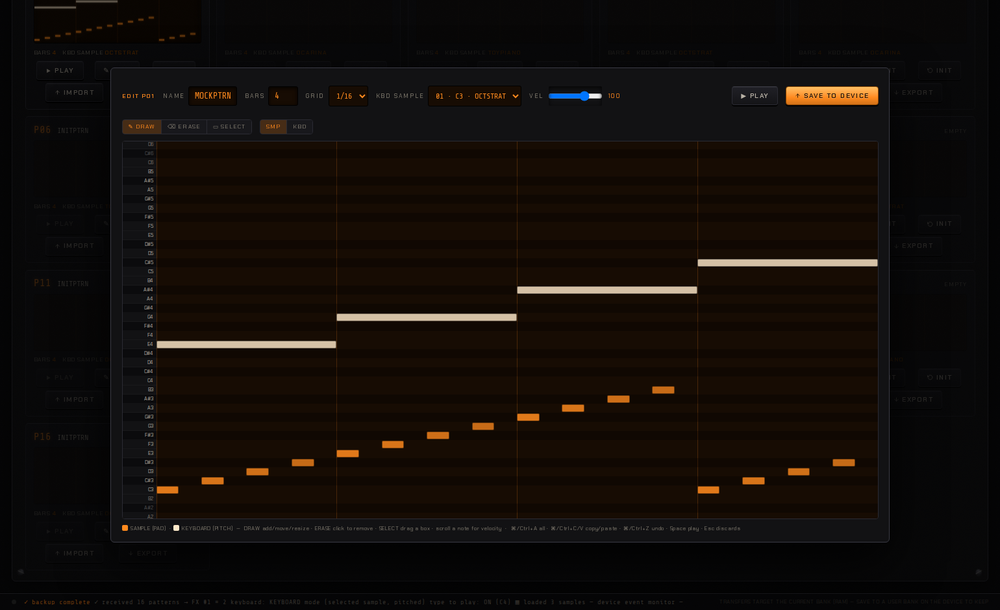
The pattern editor: a piano roll over both tracks (amber = sample/pad, cream = keyboard/pitch). Draw/Erase/Select tools sit above the grid, note brightness is velocity, ▶ PLAY previews on the device and SAVE TO DEVICE writes it back.
> **FOR PLAYBACK & RECORD**
>
> The device must have **GLOBAL → MIDI CLK = AUTO** (or EXT MIDI) so its sequencer follows the editor. See [device setup](https://benjamindehli.github.io/microsampler-editor-librarian/getting-started#device-setup). Record is fire-and-forget, so watch the device screen as it steps through arm → record → end.
## Utility
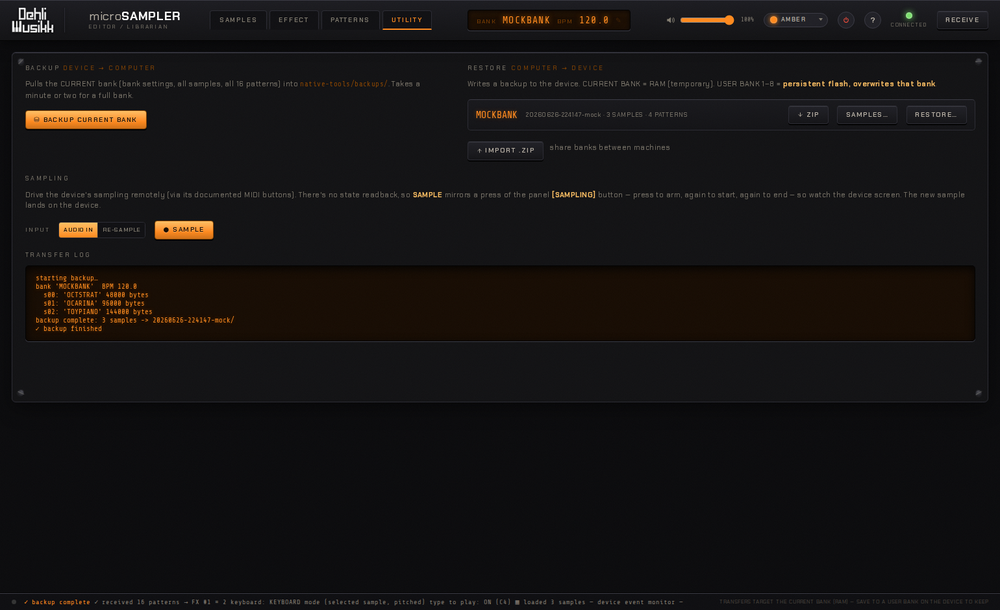
The UTILITY view: backup/restore and remote sampling.
- **Bank backup & restore**. Save the current bank to your computer and restore it later, to the current (RAM) bank or to one of the device's persistent user banks. Backups can be exported/imported as ZIP files.
- **Banks from Korg's original editor**. **IMPORT…** also takes a `.msmpl_bank` file. It joins the backup list, and **RESTORE…** writes the whole bank to the device: samples, their settings, the effect and the patterns.
- **Cherry-pick restore**. From a backup's **SAMPLES…** button, copy a single sample into any pad of the current bank, without restoring the whole bank.
- **Remote sampling**. Choose the input source (AUDIO IN / RE-SAMPLE) and press **SAMPLE** to drive the device's sampling over MIDI. It mirrors the panel button (arm → sample → end), so watch the device screen.
## Library mode (no hardware)
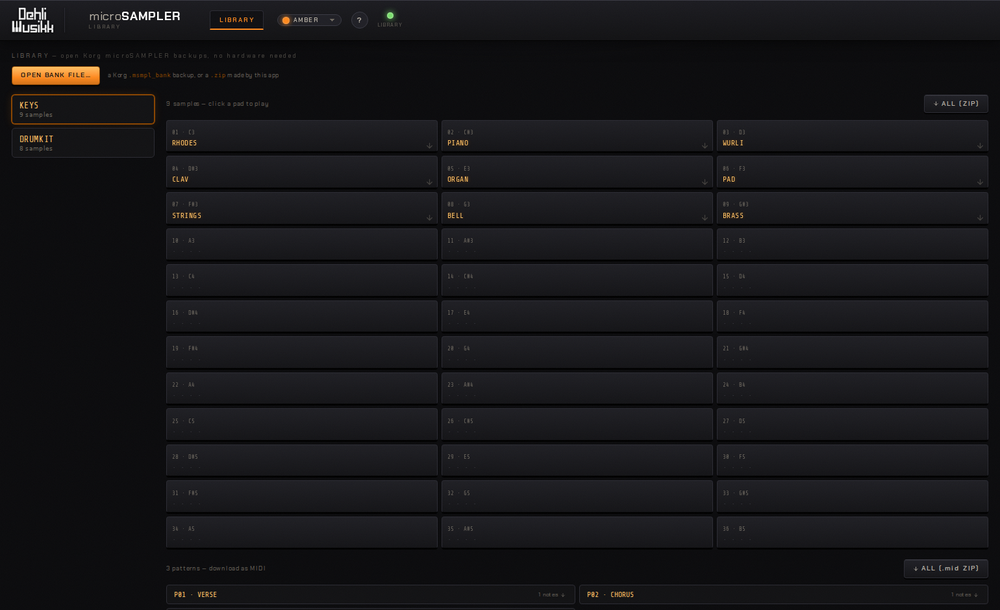
Library mode: imported banks on the left, the selected bank's samples as pads you can play and download, and its recorded patterns as MIDI downloads below.
You don't need a microSAMPLER to browse and extract the contents of bank backups. This is useful for recovering audio and patterns from old backups saved by Korg's original editor. The easiest way in is the **microSAMPLER Library app** ([download](https://benjamindehli.github.io/microsampler-editor-librarian/getting-started#download)). It needs no special permissions since library mode never touches USB. Using the classic ZIP instead, double-click the `microSAMPLER Library` launcher in your platform's folder, or start the bridge in library mode by hand:
```
python3 native-tools/bridge.py --library
```
It serves on [http://localhost:8766](http://localhost:8766), a separate port from the device bridge's 8765, so the two never clash.
- **Open a bank file**. In the **LIBRARY** view, **OPEN BANK FILE…** imports a Korg `.msmpl_bank` backup or a `.zip` backup made by this app.
- **Browse & play**. Each imported bank shows its 36 pads. Click a pad to play that sample in the browser.
- **Export samples**. Download any sample as a WAV, or grab the whole bank as a ZIP of WAVs. Device-only features are hidden while in library mode.
- **Export patterns**. Any recorded patterns appear below the pads. Download each as a MIDI file, or all of them as a `.mid` ZIP, ready to drop into your DAW.
Prefer the command line? `python3 native-tools/msmpl_bank.py extract "bank.msmpl_bank"` writes all the samples to WAVs (and any patterns to `.bin` blobs) without opening the app.
## Top bar & shortcuts
- **Bank name & BPM**. Click the bank display to edit them.
- **Master volume**. The slider sets the device's overall output level.
- **Panic** (⏻). All-sound-off / stop, if a note ever sticks.
- **Theme**. 12 accent colours from a swatch dropdown, and the whole interface recolours.
- **RECEIVE**. Re-read the bank from the device.
- **AUTO-SYNC** (on by default). Re-reads the bank when you return to the window, to pick up hardware edits. A bank read stops a playing pattern and releases held notes. Untick it to keep them going, and press RECEIVE yourself after editing on the device.
- **?**. The in-app help overlay.
| Shortcut | Action |
| --- | --- |
| `← → ↑ ↓` | Move between pads |
| `Space` | Audition the selected pad |
| `+` / `−` / `0` | Waveform zoom in / out / fit |
| `R` | Receive bank from device |
| `Ctrl`/`⌘` + `Z` | Undo a parameter edit |
| `Ctrl`/`⌘` + `⇧` + `Z` (or `Ctrl`/`⌘` + `Y`) | Redo |
| `Z` / `X` | On-screen keyboard: octave down / up (when "type to play" is on) |
| `Space` | Pattern editor: play / stop the pattern on the device |
| `Del` | Pattern editor: delete the selected note(s) |
| `Ctrl`/`⌘` + `A` / `C` / `V` | Pattern editor: select all / copy / paste notes |
| Arrow keys (`⇧` + arrows) | Pattern editor: move the focused note (resize it) |
| `Esc` | Stop MIDI learn. In the pattern editor: discard changes and close |
| `?` | Help overlay |